Sources
The kinds of files and links Study can read, and how each one is read.
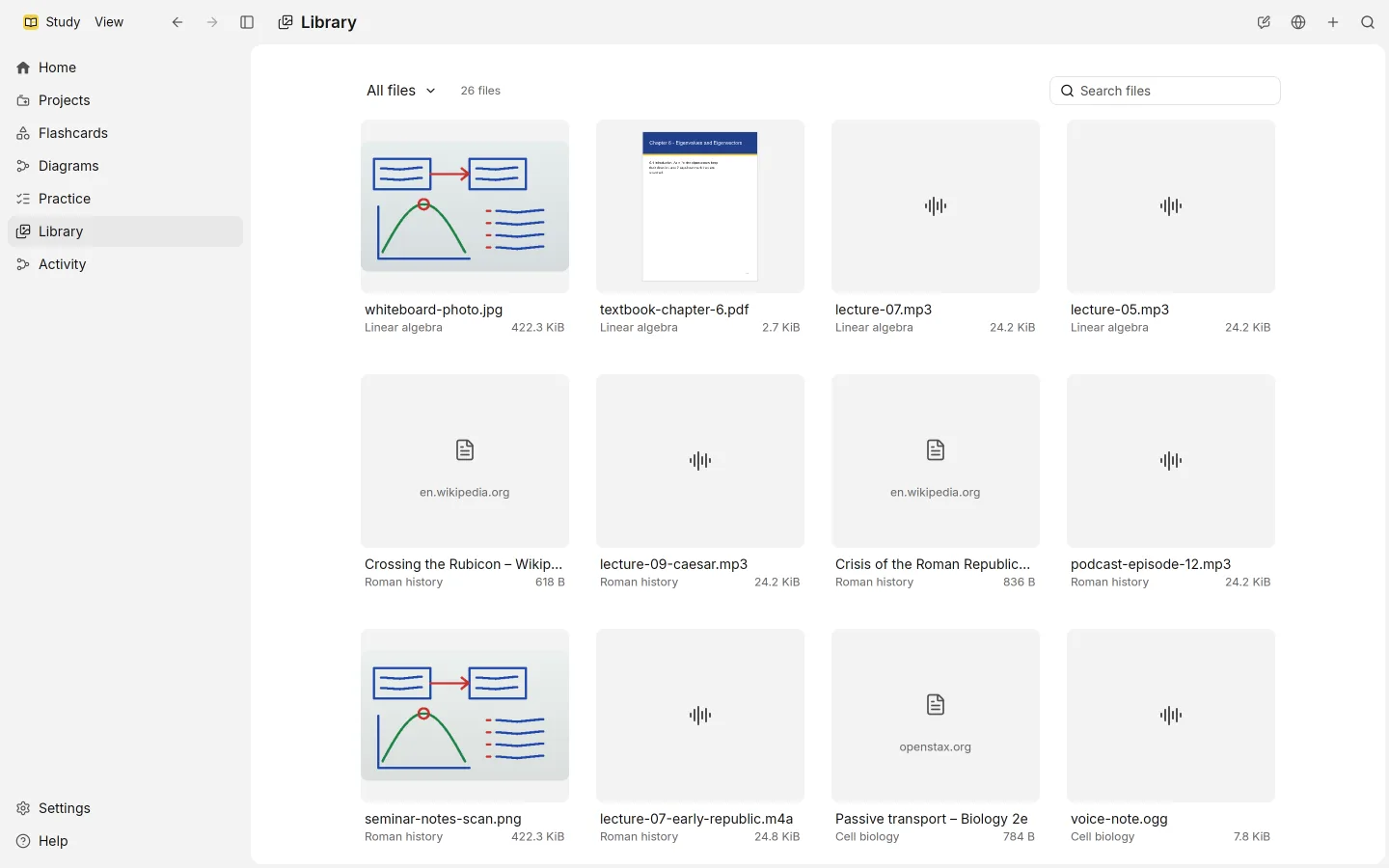
A source is anything you give Study to learn from: a recording, a PDF, slides, a web page, a note. Study keeps every file in your Library and reads the ones it understands into text that answers, search and study material can point back to.
Adding sources
You can add sources in a few places:
- in a session, with Attach files, by dropping files, or by pasting
- from Home or the Library, with Add files
- in the Library, with New note, which needs a title and some text
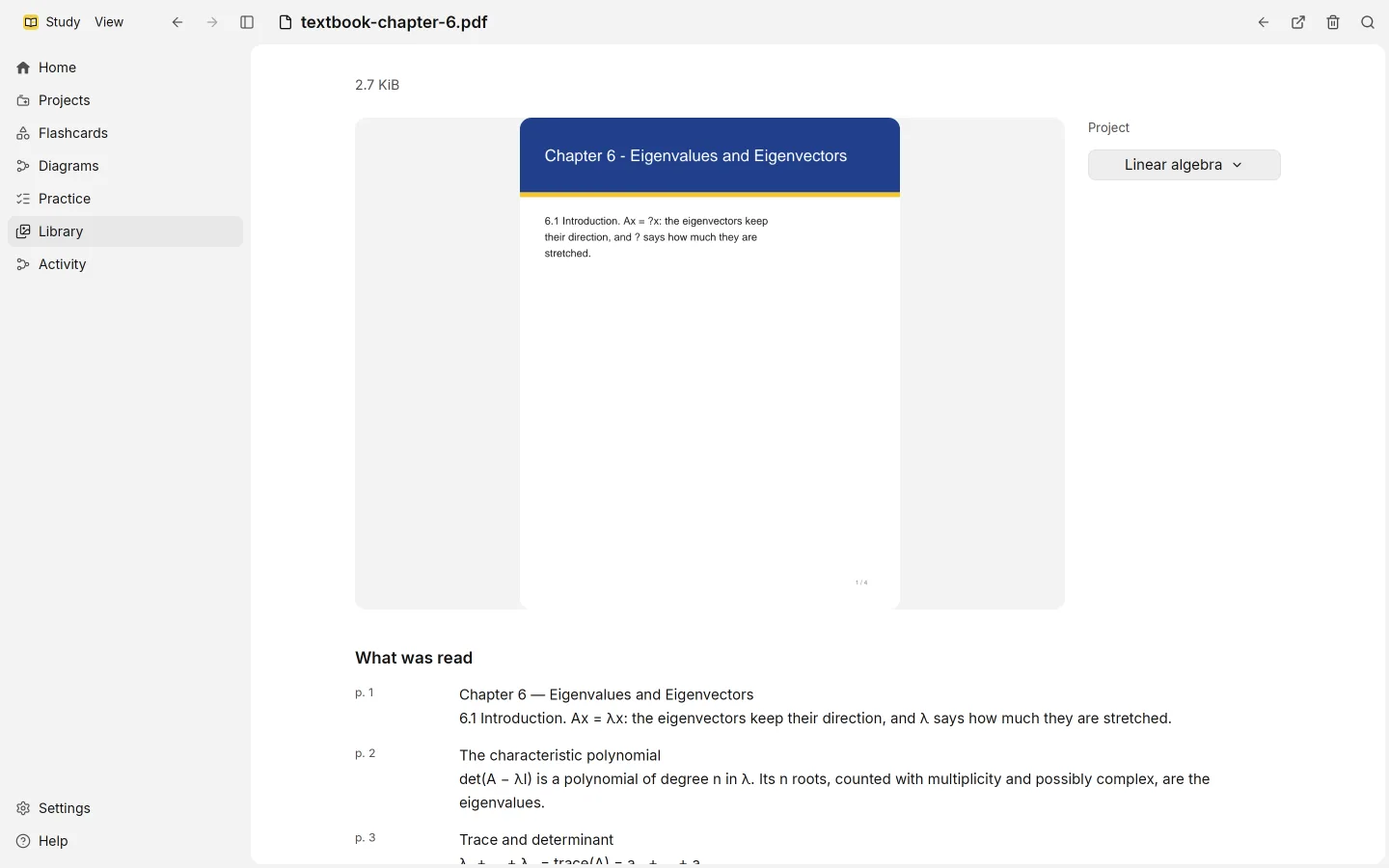
- in the Library, with Add link, for a web page or a YouTube video
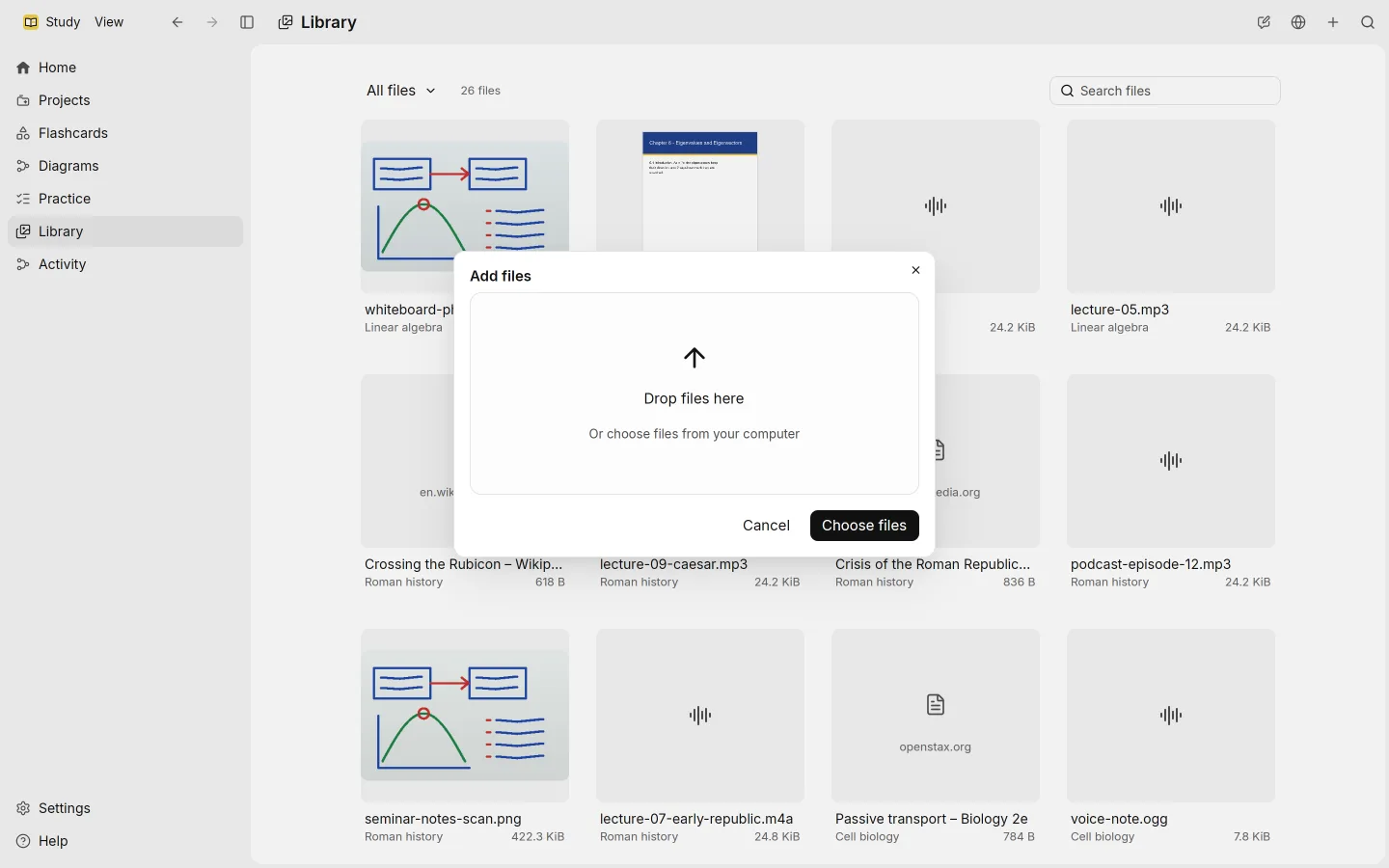
Each file must be under 512 MiB and not empty. Study looks at a file’s contents to tell what it is, rather than trusting its name.
What Study reads, and how
| Kind | How it’s read |
|---|---|
| Recordings and audio | Transcribed on your computer |
| Videos | The sound is transcribed on your computer |
| PDFs | Pages read with AI |
| Pictures (PNG, JPEG, WebP, GIF, BMP, TIFF) | Read with AI |
Documents (.docx) | Office reader |
Slides (.pptx) | Office reader |
| Web pages | Web page reader |
| Code and web files, including HTML | Plain text reader |
| Text files and notes | Plain text reader |
| Spreadsheets saved as text, such as CSV | Plain text reader |
Some files are kept but not read: archives, other office formats such as .doc, .odt and .rtf, e-books, SVG and HEIC pictures, and anything else Study doesn’t recognise. They stay in your Library. If you need one read, saving it again as PDF, PNG, MP3 or M4A usually works.
Links
Add link saves a web page and reads it. A YouTube link (including Shorts, live videos and youtu.be links) is handled like a recording: Study takes its sound with yt-dlp and transcribes it. yt-dlp has to be installed for that; see install.
After reading
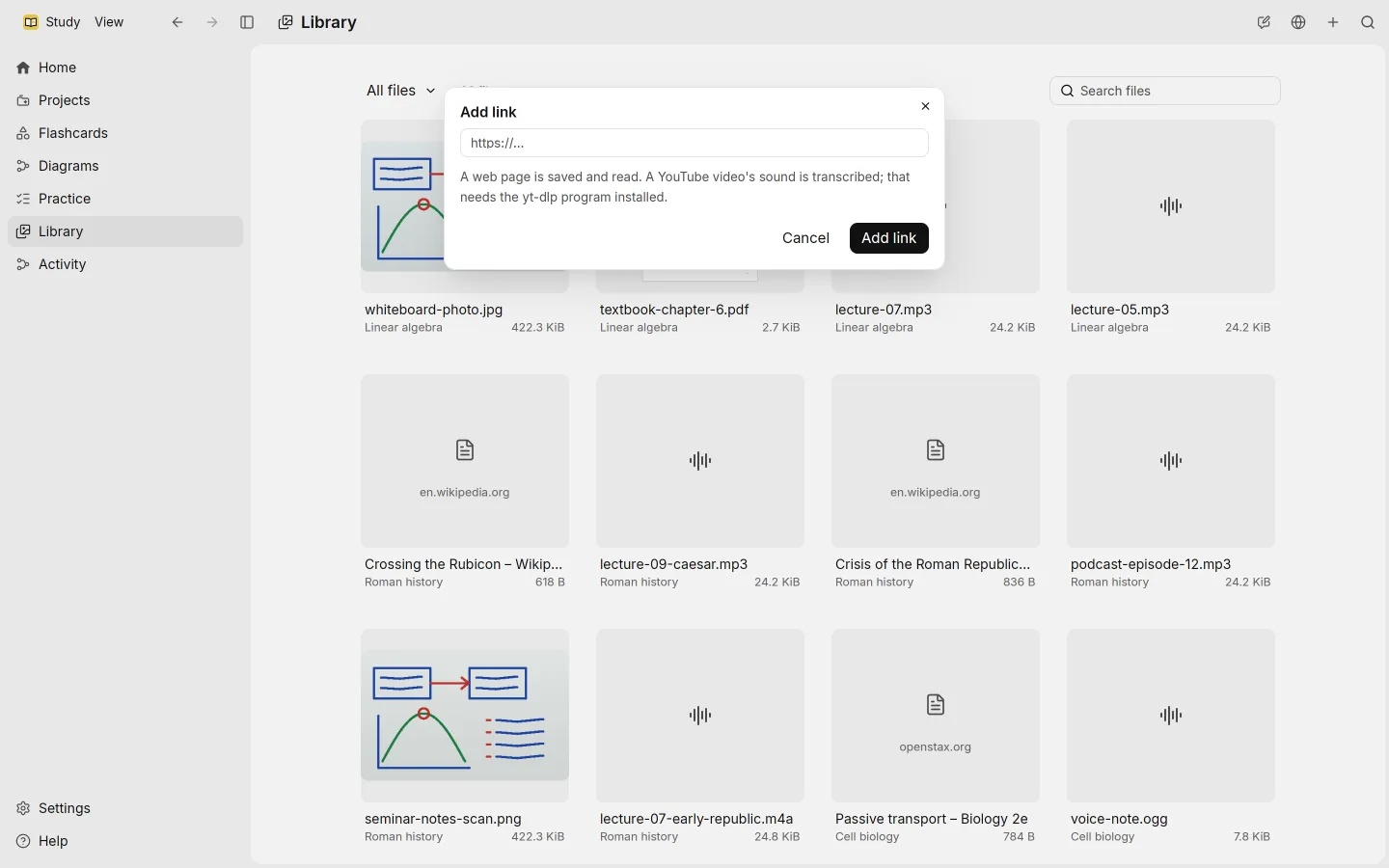
Recordings go through two more steps. Correct transcripts with AI fixes words the transcription misheard, and Tidy spacing cleans up the spacing. Then every read source is added to the Search index and to Search by meaning, so search and answers can find it.
Read sources also feed the project’s study material: flashcards and the diagram. Some kinds leave out a piece by default. Code and spreadsheets don’t make flashcards, and pictures don’t feed the diagram.
Changing what runs
Open Settings › Processing to see every kind of source in a table with the columns Reading, Tidying, Search and Study material. Each step can be turned on or off for each kind, and every change is saved as you make it.
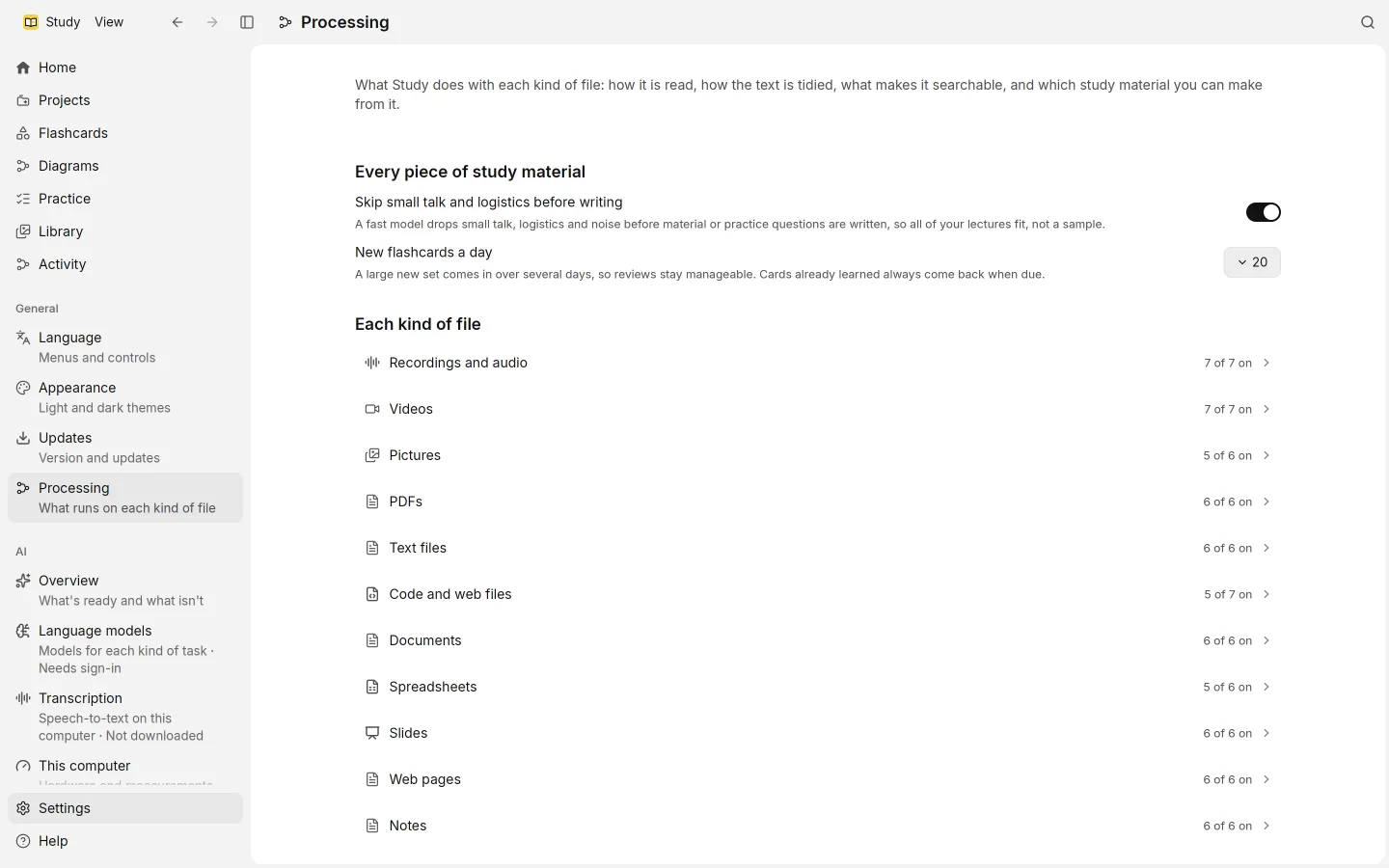
If you correct a file’s text by hand, with Correct this text in File details, search and answers use your version.