Search
Find projects, sessions, files and passages by their words or by what they mean.
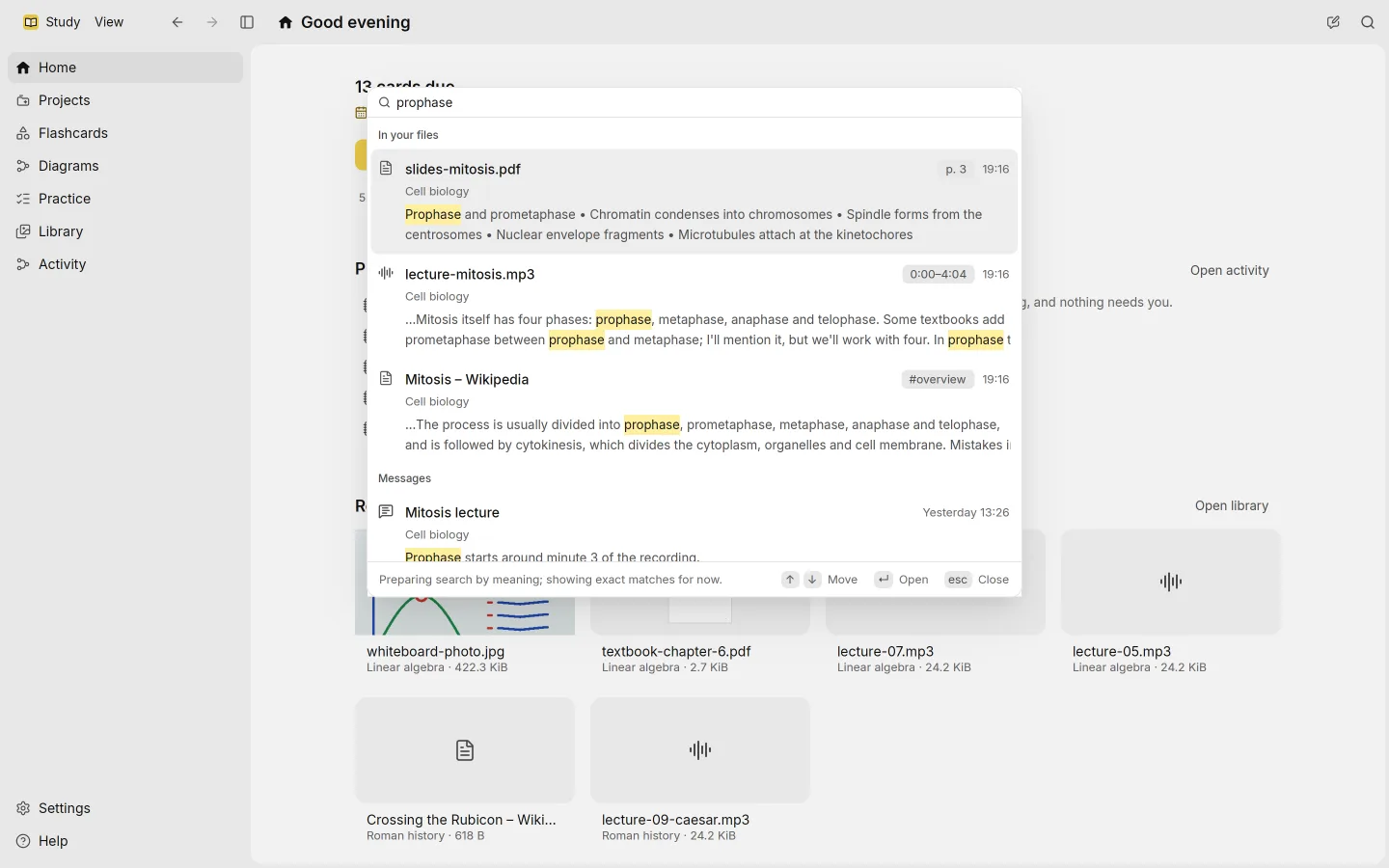
Search looks through everything you’ve put into Study: projects, sessions, your files and what’s inside them, and your messages. It matches the words you type and, once its model is installed, what they mean.
Open search
Press Ctrl K, or Cmd K on macOS, from anywhere in the app. A box opens that says Search projects, sessions, and files…. Start typing; results appear as you go.
| Key | What it does |
|---|---|
| ↑ and ↓ | Move through the results |
| Enter | Open the selected result |
| Esc | Close search |
What you get back
Results come in groups:
- Projects, by name
- Sessions, by title
- Files, by name
- In your files, passages inside your files that match
- Messages, your notes and the answers in your sessions
Opening a file or a passage shows that file: beside its session if it was attached to one, otherwise in the Library. A message opens its session.
Words and meaning
Study searches in two ways at once and combines the results.
- By words, it finds passages that contain what you typed. This works from the start.
- By meaning, it finds passages about the same thing even when they use other words, or another language. A search for “cell energy” can find a passage about mitochondria and ATP.
Search by meaning needs a small model that runs on your computer. It’s a multilingual model of about 135 MB, and it never sends your text anywhere. Download it in Settings › This computer. Until you do, search shows Not installed: search matches words only, and everything else keeps working.
After you install the model, Study prepares your existing files in the background. While it does, search says Preparing search by meaning; showing exact matches for now. New files are prepared as they’re read. You can follow the work in Activity, under Search by meaning.
What gets searched
A file shows up inside In your files once Study has read it, which for a recording means once it’s transcribed. Files Study can’t read are still found by name. See sources for which kinds are read.
Each kind of source can be left out of the search index, or of search by meaning, in Settings › Processing under Search.
If a file’s text is wrong, fix it with Correct this text in File details. Search uses your correction.
Search and answers
Answers use the same index to find related passages across a project. A source that search can find well is one that answers can draw on well, so installing the search model also helps @study find what you mean.