Background work
Follow what Study is doing in the background, and fix what needs your attention.
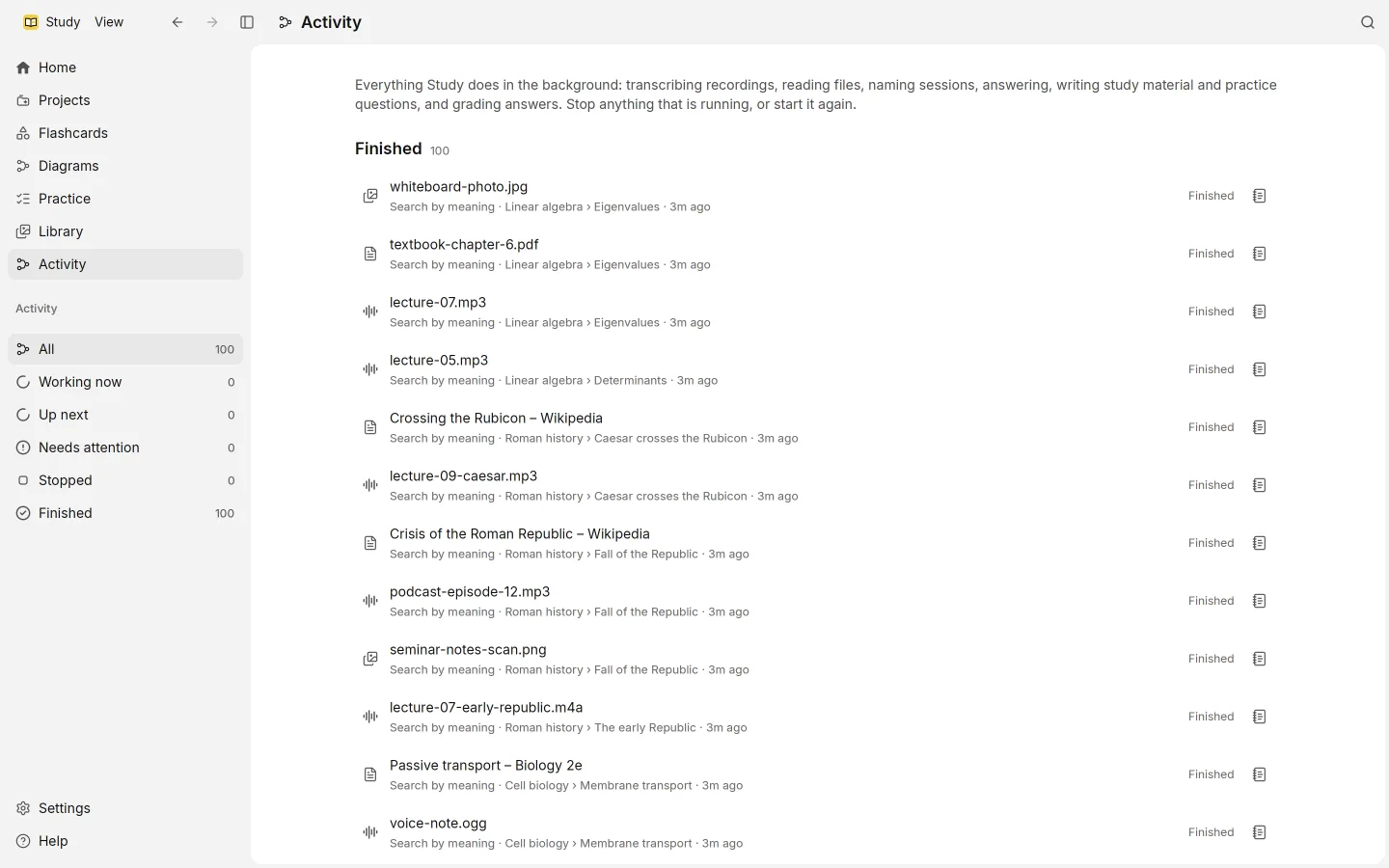
Transcribing a lecture, reading a PDF or writing flashcards takes time, so Study does it in the background while you keep working. Activity in the sidebar shows all of it. Home also tells you when something needs you, with Open activity.
What you’ll see
Activity groups the work by where it stands:
- Working now, running at the moment
- Up next, waiting its turn
- Needs attention, stopped by something you can fix
- Stopped, what you stopped yourself
- Finished, done
Each item names its stage and the file, session or project it’s for. The stages are:
| Stage | What it does |
|---|---|
| Fetching a link | Saves a web page or a YouTube video’s sound |
| Transcription | Turns a recording into text, on your computer |
| Reading pages | Reads PDF pages and pictures on your ChatGPT plan |
| Reading | Reads documents, slides, web pages and text |
| Search index | Adds the text to word search |
| Search by meaning | Adds the text to search by meaning, on your computer |
| Session title | Names a session from its notes |
| Answer | Writes an @study answer |
| Rewrite | Carries out an AI edit |
| Study material | Writes flashcards or a diagram |
| Practice question | Writes the next practice question |
| Grading an answer | Grades a practice answer |
One step leads to the next. A recording, for example, is transcribed, corrected and tidied, then indexed, and then it can feed answers and study material.
Stopping and restarting
Stop stops an item that’s running or waiting. Start again runs a stopped item again. When something failed, Try again gives it another go.
When work waits for setup
Some work needs something set up first. Instead of failing, it waits under Up next in Activity, and the page that needs it (a session, study material or practice) shows a card for what’s missing:
- Connect your ChatGPT plan, with sign-in right on the card
- Download the transcription model
- Download the search model
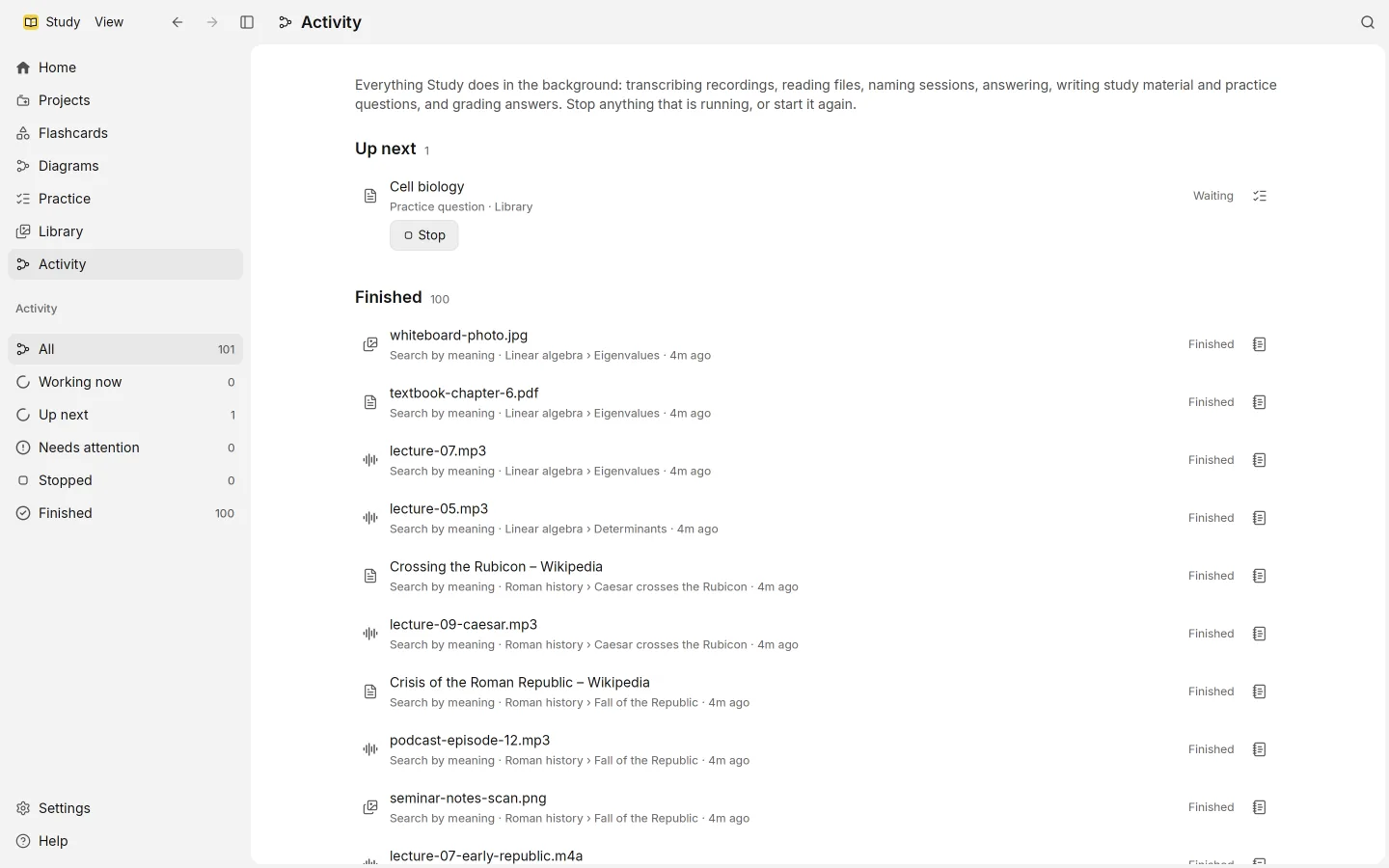
This picks up on its own once it is ready. You don’t need to restart anything after you sign in or install a model.
When something goes wrong
Short problems, such as a dropped connection or a busy service, are retried on their own after a pause that grows each time. You don’t need to do anything.
Other problems land in Needs attention with a message saying what happened and what to do. For example:
- you’re signed out, or the connection is down
- a file can’t be read; saving it again as PDF, PNG, MP3 or M4A often helps
- there isn’t enough material yet to write from
- a model isn’t installed
- the file, session or project was deleted
Quitting is safe
Study keeps its work in its database, not only in memory. If you quit, or the app closes unexpectedly, the work is still there when you open Study again, and it carries on where it can. Recordings are saved every second while they run; see sessions.