Flashcards
Review cards written from your project, scheduled so you see each one before you forget it.
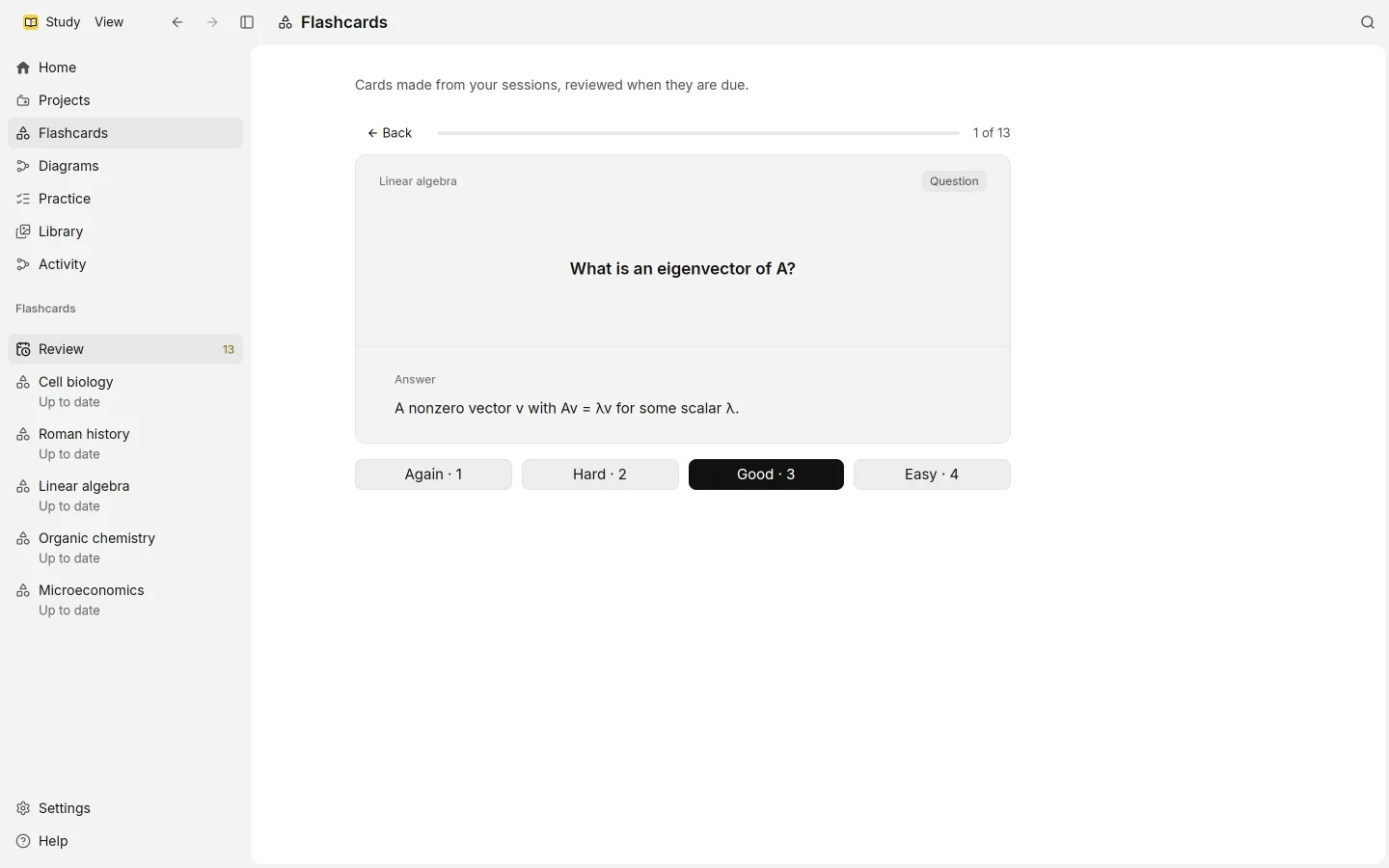
Study writes flashcards from a whole project’s sources and schedules them with spaced repetition. You review the cards that are due, rate how well you remembered each one, and Study decides when to show it again.
Where cards come from
Each project has one set of flashcards, written on your ChatGPT plan from the project’s read sources. Each card cites the passages it rests on, and its Sources take you back to the page or moment it came from.
The set lives in the project’s Study material, and in Flashcards in the sidebar. Like the diagram, it starts with Make and later offers Update when you want new cards from new material. An update revises the set instead of starting over.
Which kinds of source feed the cards is set in Settings › Processing, under Study material. Code and spreadsheets are left out by default.
Reviewing
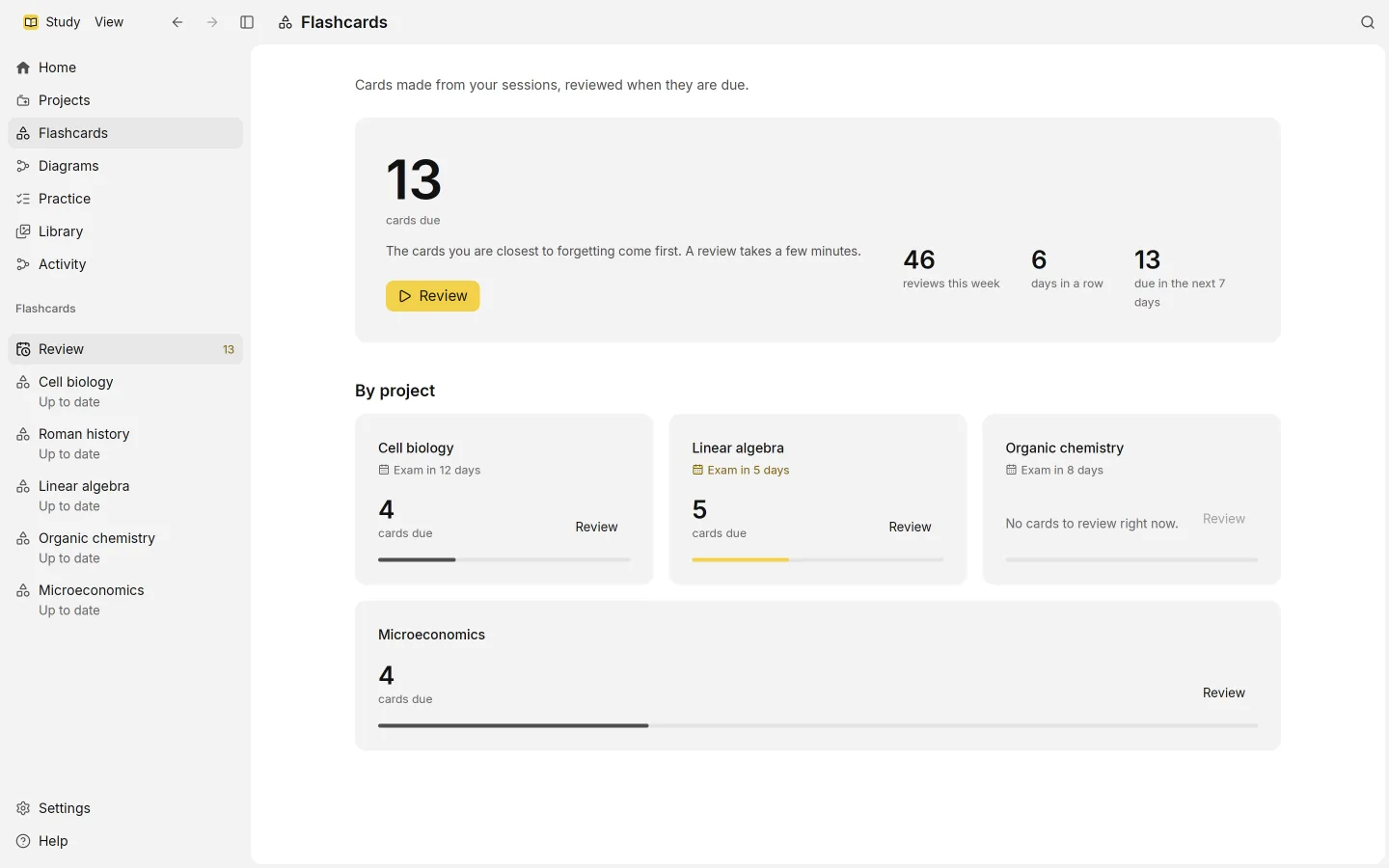
Choose Review in Flashcards, Review flashcards on a project, or Review now on Home. Each card shows its question first.
- Try to remember the answer, then choose Show answer, or press Space or Enter.
- Rate how it went: Again, Hard, Good or Easy. The keys 1 to 4 do the same.
The cards you’re closest to forgetting come first. When none are left, Study says Review done. Cards come back when they are due.
Rate honestly. Again brings a card back soon; Easy pushes it further away. Scheduling uses FSRS, a spaced repetition method that learns from your ratings how quickly you forget each card.
How many new cards
New cards are mixed in gradually, so a large set doesn’t land on you all at once. New flashcards a day, in Settings › Processing, sets how many new ones a day’s reviews may include.
The Flashcards page shows what’s coming up, including the cards due in the next 7 days. If a project has an exam date, its review tile counts down to it.
Browsing and editing
Open a set to look through all of its cards outside a review. Space turns a card over, and the left and right arrow keys move through the set. Turn all over and Turn all back flip every card at once.
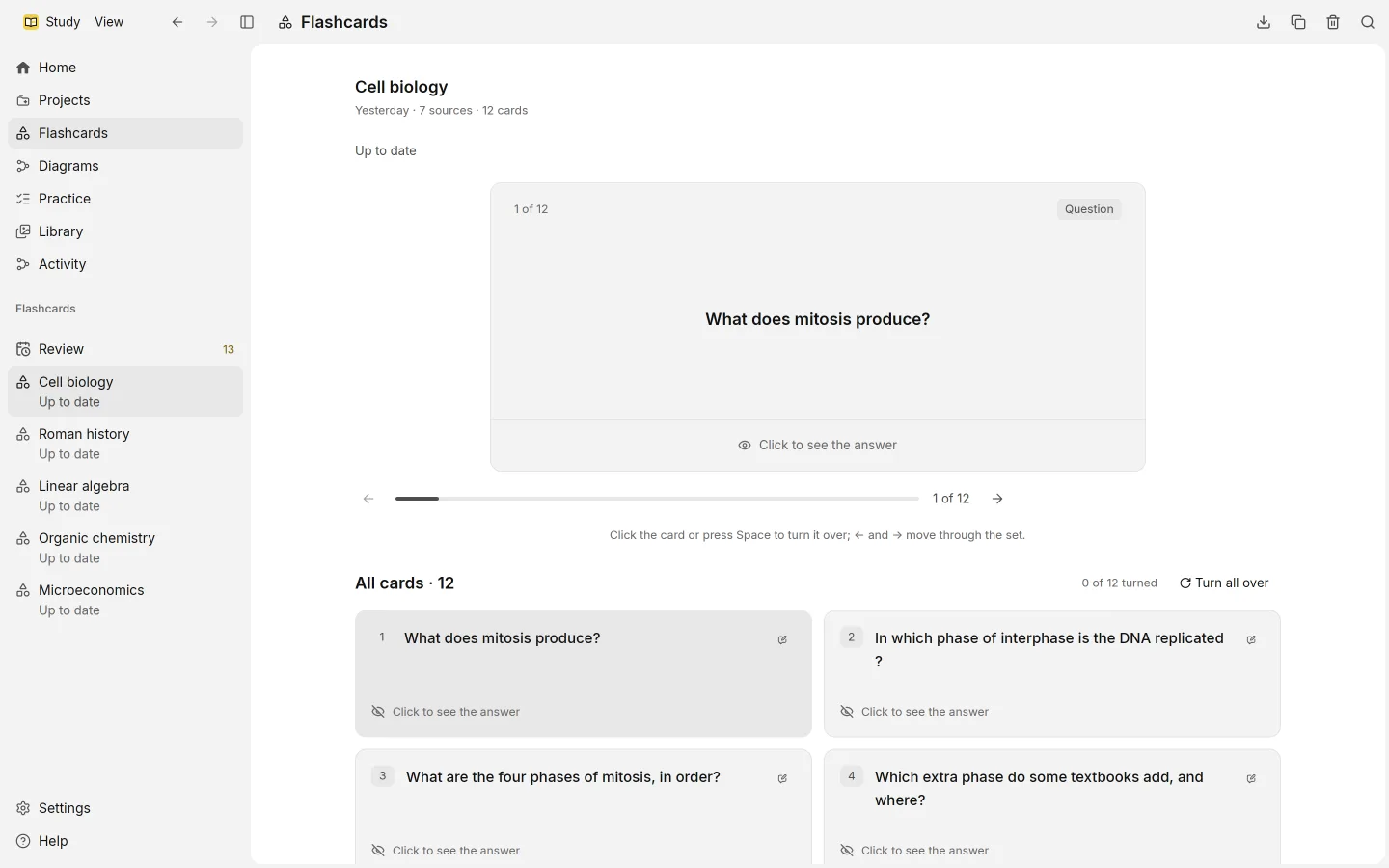
You can change the set by hand:
- Edit card changes its Question or Answer
- Add a card writes one of your own
- Delete card removes one
From practice, Add to my flashcards turns a question you missed into a card.
Using cards elsewhere
Save for Anki saves the set as a text file, one card per line with the front and back separated by a tab. Anki and most other flashcard apps can import it.