First steps
What happens the first time you open Study, and how to set up your first project.
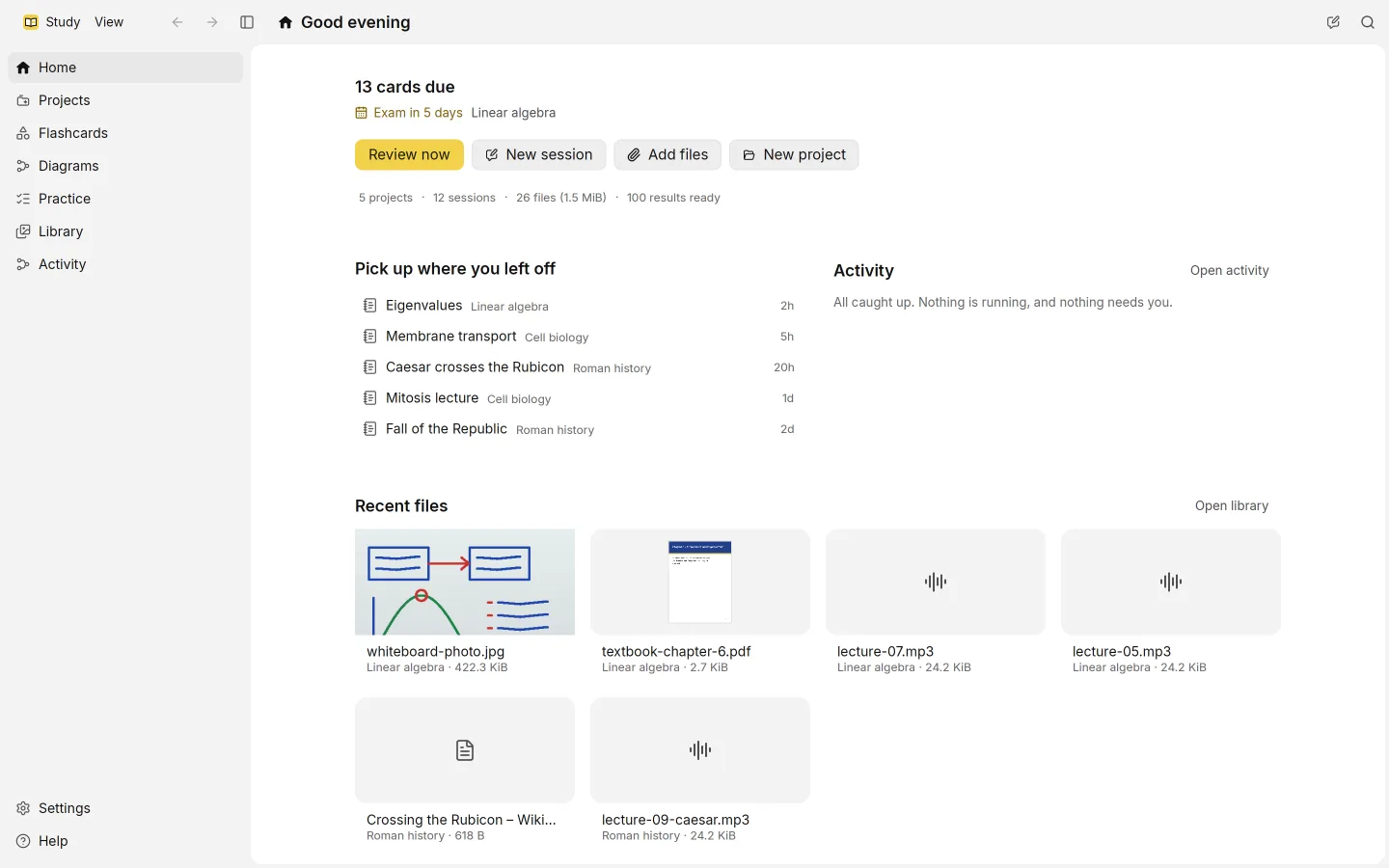
The first time you open Study, it gets itself ready, gives you a short tour, and then leaves you on the home page. You can skip any of it and come back later.
Getting ready
Study first shows Getting Study ready. It measures your computer once, to know which local models it can run well. If you’d rather not wait, choose Continue without it.
The welcome tour
The tour has a few short steps, and each one has Skip.
- Make it yours sets the language (English or Italiano) and the look.
- Sessions are your notebook explains where your notes go.
- Where AI runs offers Download what runs here, for the models that run on your computer, and sign-in with your ChatGPT Plus or Pro plan.
- You’re all set ends the tour with Start studying.
To see it again, open Help and choose Replay the welcome tour.
Connecting your ChatGPT plan
Choose Sign in with ChatGPT. Study opens your browser and shows Finish signing in in your browser… until you’re done. If ChatGPT asks, choose Allow use of my plan. Some accounts can’t use their plan in other apps; Study tells you if yours is one of them.
Work done on your plan counts toward its usage limits, the same limits ChatGPT uses. Until you sign in, work that needs the plan waits for you in Activity.
Make a project
Everything in Study belongs to a project, usually one per course. Choose New project, give it a name, and choose Create project.
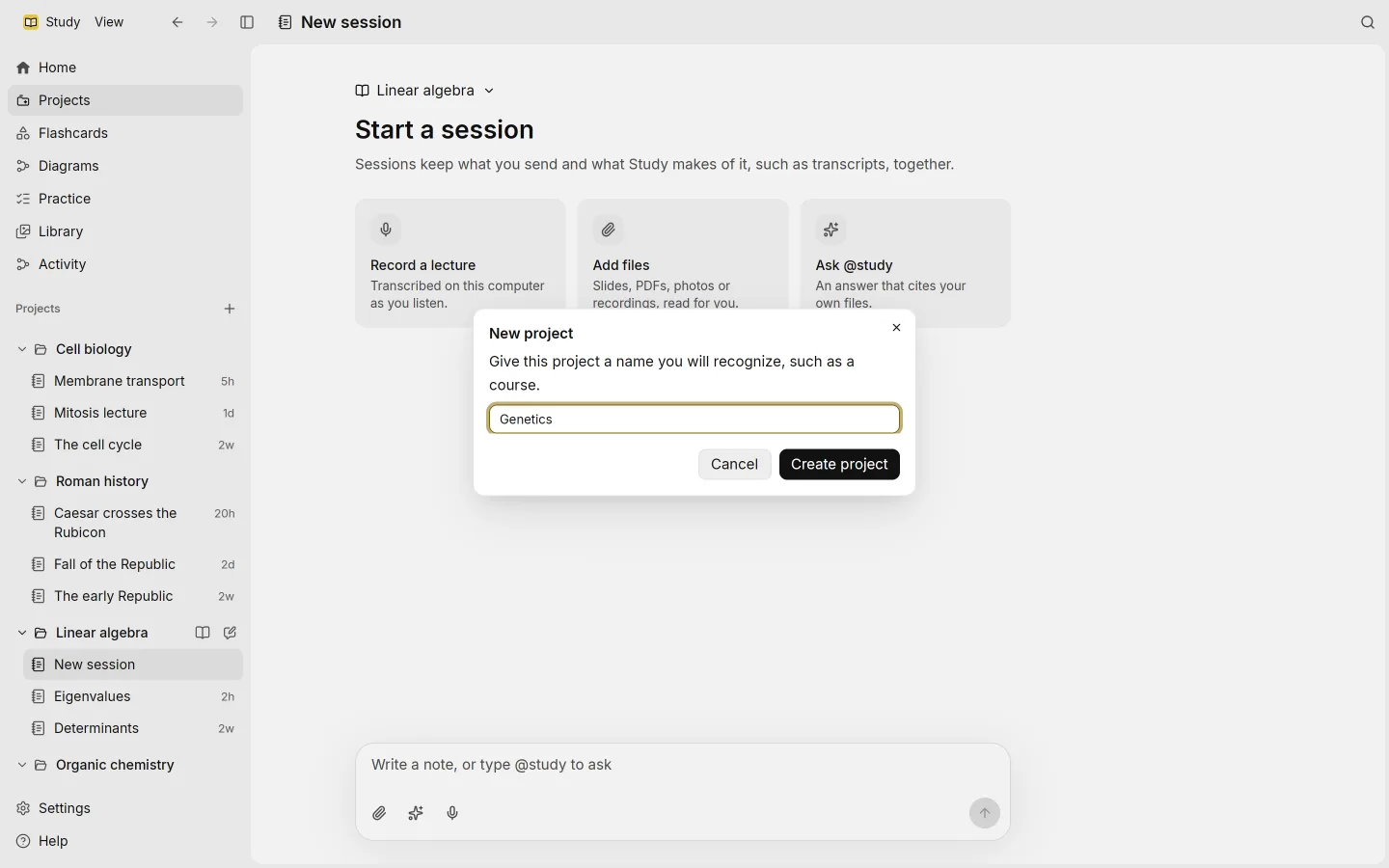
A project’s page is where its work comes together:
- New session starts a page of notes for a lecture or study session. See sessions.
- Take the quiz opens practice.
- Review flashcards starts a flashcard review.
- View files shows the project’s files in the Library.
- Study material shows how the project’s flashcards and diagram are doing.
- Rename project and Delete project. Deleting a project keeps its files in the Library.
Set an exam day
On a project’s page, Exam day lets you pick the date of the exam. Study uses it for a countdown: Home and the flashcard reviews count down to it, nearest exam first, with labels such as Exam in 5 days, Exam tomorrow or Exam today. The date doesn’t change what you study or how cards are scheduled.
The home page
Home is where Study opens. It shows:
- a card for today, with the flashcards due across all your projects and your nearest exam, plus Review now; when nothing is due, it points you to practice instead
- quick actions: New session, Add files and New project
- Pick up where you left off, with your recent sessions
- work that needs you, with Open activity
- Recent files
- what this computer runs
The sidebar holds the rest: Library, Projects, Flashcards, Diagrams, Practice, Activity, Settings and Help.