Sessions
Take notes, record lectures and attach files in a session, and ask @study when you want an answer.
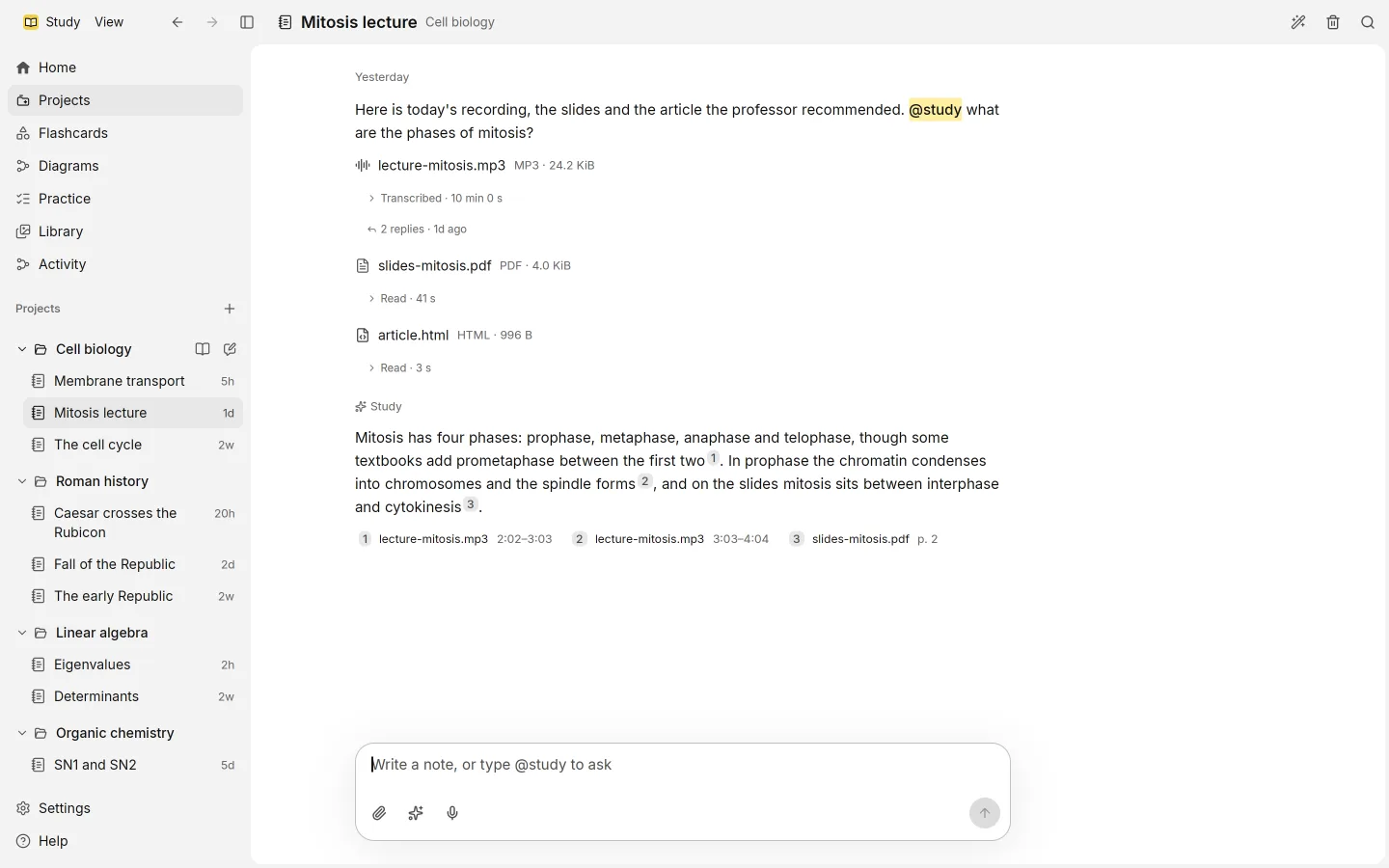
A session is your notebook for one lecture or one sitting. You write notes, record what you hear, and attach the files that go with it. Every session belongs to a project, and you reach it from that project’s page.
Start a session
Choose New session from Home or from a project. The new session offers three ways in:
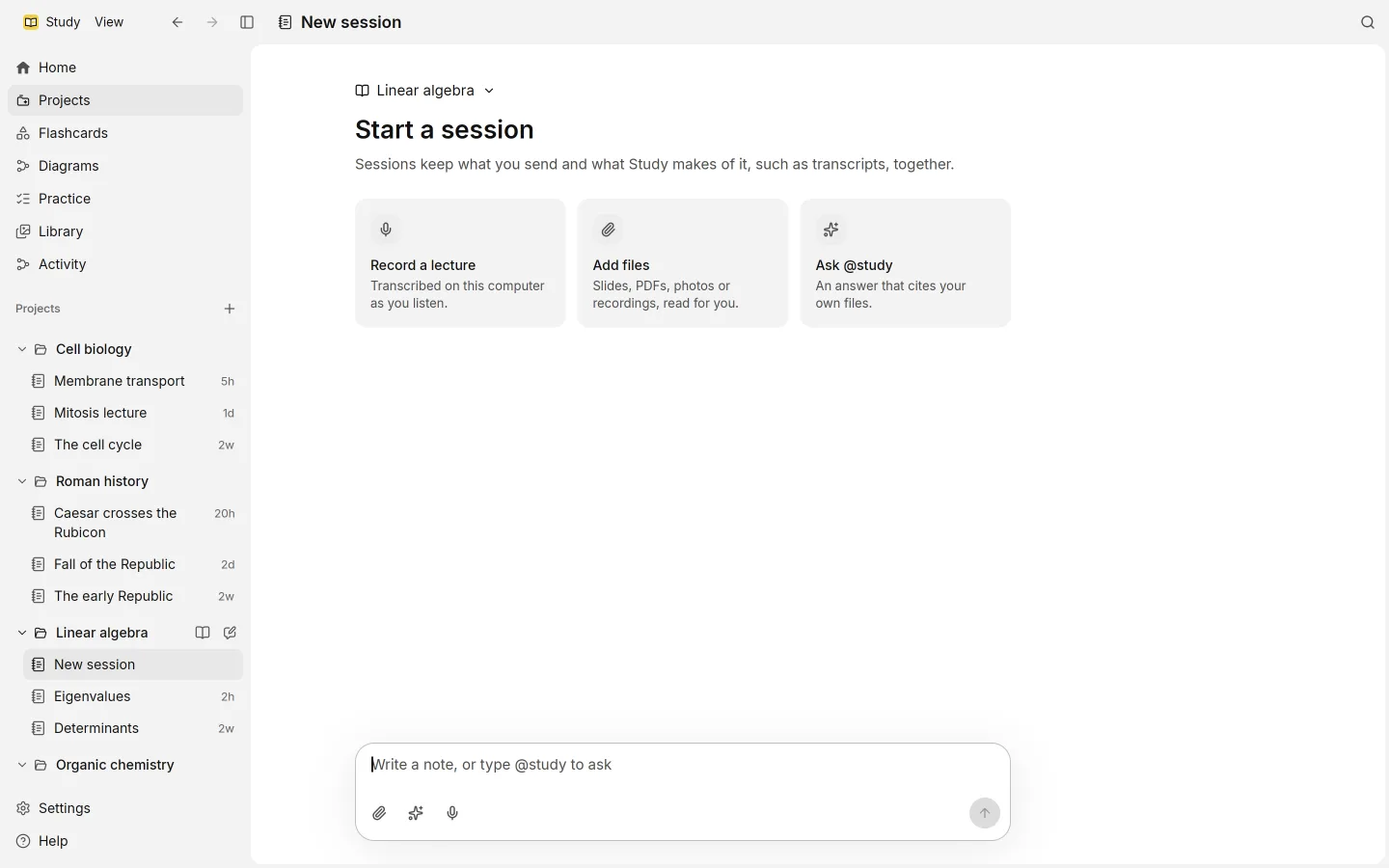
- Record a lecture, transcribed on this computer as you listen
- Add files, to bring in slides, PDFs, recordings and more
- Ask @study, to start with a question
If you started from Home, Choose a project picks where the session goes.
Study names each session from its notes. If the name no longer fits, Regenerate title from the notes asks for a new one.
Write notes
Type in the box at the bottom, which says Write a note, or type @study to ask, and press Enter to send. A note stays a note: Study doesn’t reply to it. To get an answer, mention @study anywhere in the note. Typing @ opens a small menu; Enter or Tab inserts the mention. How answers are built is on the answers page.
Attach files
Use Attach files, drop files onto the session, or paste them with Ctrl V (Cmd V on macOS). Pasted images come in as files. Each file joins your Library, and Study reads it in the background. See sources for what it can read.
Every attachment has its own thread. Reply in thread keeps notes about that file next to it. A faint line under the file says what has happened to it, such as Transcribed or Read.
If Study got something wrong, open File details and choose Correct this text. Search and answers use your correction from then on. Reading the file again replaces it.
Record a lecture
Record audio starts recording in the session you’re in. The recording is transcribed on your computer. If the transcription model isn’t downloaded yet, the transcription waits in Activity until it is. When you’re done, choose Stop and send recording.
Study saves the recording every second while it runs. If the app closes in the middle, the session shows Unfinished recording next time, with Resume, Send and Discard.
Only one session records at a time. A recording has a maximum length, and Study sends it when it gets there.
Edit and compare versions
Each of your notes and each answer keeps its versions.
- Edit changes the text yourself. Esc cancels.
- AI edit rewrites it for you, with Improve, Summarize, or your own words in Tell the assistant what to change.
- Regenerate asks for a new answer.
When a message has more than one version, Versions steps through them; the left and right arrow keys do the same. Earlier versions are kept.